Understanding the Proper Way to Lay Out a Page with HTML5
January 8, 2014
By Bipin Joshi
Introduction
A web page being rendered in the browser consists of many things - logo, informative text, pictures, hyperlinks, navigational structure and more. HTML5 offers a set of markup elements that allow you to create a structured layout for web pages. These elements are often termed as Semantic Markup because they convey their meaning and purpose clearly to the developer and to the browser. This article discusses some of the important HTML5 elements that can contribute to the layout of a web page.
Semantic Markup
Semantic markup expresses its meaning and purpose clearly to the developers and to the browser. Web developers frequently use the <div> element to layout their web pages. However, a <div> element by itself doesn't convey what it is representing in a web page. A <div> element may wrap a navigational menu or it may house a list of blog posts, but merely using <div> doesn't convey much information to the developers or to the browsers. Usually CSS classes applied to <div> elements reveal some information about their intended purpose. For example consider the following markup:
</p>
<div class="header">...</div>
In the above markup it is the header CSS class that gives you an idea as to what the <div> might be doing. In the absence of this CSS class, however, there is no way to easily identify what the <div> might be doing. This is because <div> is a general purpose element. It has no specific documented responsibility. It simply marks a division or section of the web page but doesn't dictate what can go inside that section.
HTML5 includes a set of markup elements that overcome this difficulty. These new elements have meaningful names so that just by looking at these elements you get a clear idea about their content. These semantic elements of HTML5 are listed below (this is not an exhaustive list):
<header>
<footer>
<section>
<article>
<aside>
<nav>
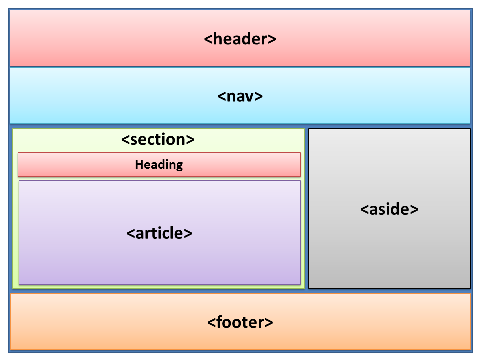
As you can see, these elements are quite expressive and you can immediately get an idea of the intended purpose. The following figure shows a sample page layout designed using these elements:
The above figure shows a typical arrangement of various elements.
Note that their exact location on a page is purely dependent on the layout. For example, the <aside> element can be placed on the left hand side of the <section> or even above or below it.
The following figure shows an actual web page making use of these elements:
Now that you have some idea about the semantic elements, let's discuss each of the elements in more detail. For the sake of our discussion we will use the above sample web page as an example.
Header Element
The <header> element represents the header of the whole page or a section of it. The W3C specifications define the <header> element like this:
The <header> element represents a group of introductory or navigational aids. A header element is intended to usually contain the section's heading, but this is not required. The header element can also be used to wrap a section's table of contents, a search form, or any relevant logos.
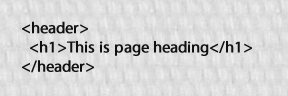
The above explanation tells us that the <header> element can contain headings, logo images, supporting text and optionally a navigation structure. Most of the web pages have page headings in the form of logo, slogan and/or supportive text. The header element acts as a container for all these. Note that the header element can be used not only for the whole page but also for individual sections of a web page. For example, in addition to the page level header you may use the header element in the contact information section of the page.
The following markup shows how the <header> element has been used in our example web page:
Nav Element
The <nav> element is intended to house navigation menus or any kind of navigational structure such as hyperlinks. The W3C specifications define the <nav> element like this:
The <nav> element represents a section with navigation links.
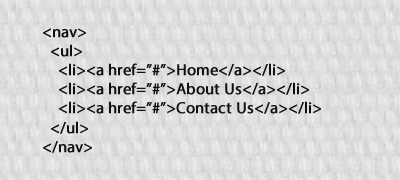
The <nav> section can contain links to the other pages from the website or to other parts of the same web page. It is recommended that you use <nav> only for the main navigational structures and not for minor set of hyperlinks (such as the ones that usually go in the footer of a web page).
The following markup shows how the <nav> element has been used in the example web page:
Section Element
As per W3C specifications the <section> element represents a generic section of a document or application. The <section> element should not be confused with the <div> element. The <section> element is a thematic grouping of content whereas the <div> doesn't have any such restriction. The W3C specifications further clarifies - The section element is appropriate only if the contents would be listed explicitly in the document's outline. Some examples where a <section> element can be used include contact information section of a web page, announcement section of a web page and tabbed pages of a tabbed user interface. A section usually has some heading.
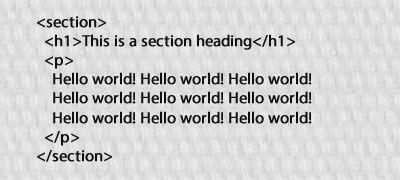
The following markup shows how the <section> element looks:
A section can also have its own <header> elements as well as a <footer> element. The section element is analogous to a section of a printed book that contains chapters or a section of a newspaper that contains news items.
Article Element
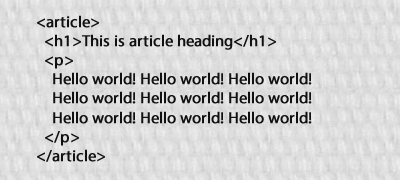
The <article> element represents an independent item section of content such as a blog post, forum post or a comment. It is expected that the content in the article element should be independently distributable or reusable as in the case of content syndication.
The following markup shows how the <article> element looks:
You will find that people sometimes use <section> and <article> together or use nested <article; elements. Currently there are no rigid and precise rules dictating their nesting. Whenever you use them together try to ensure that the resultant structure meets the intended purpose of the respective element as given in the W3C specifications.
Aside Element
The <aside> element is intended to house content that is related to the surrounding content but at the same time is a standalone piece of content in itself. If you take out the <aside> from the page it shouldn't change or alter the meaning or clarity of the main page content. Think of it as a sidebar that gives some extra, related yet standalone information about the topic being discussed. Some examples of <aside> include - extra information, related links and contextual advertisements. The <aside> element can house any type of content including textual information and images.
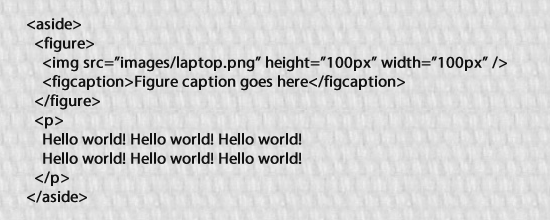
For example, the <aside> used in the example web page looks like this:
As you can see the <aside> element shown above contains a <figure> element and some text in the form of a <p> element. The <figure> element is intended to represent a figure and in turn contains <img; and <figcaption> element. The <img; tag points to the actual image to be displayed and the <figcaption> element holds the figure caption.
Footer Element
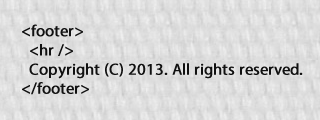
The <footer> element represents the footer of the whole page or a <section> element. It is intended to contain footer information such as copyright notice.
The <footer> element of the example web page looks like this:
Summary
This article covered semantic markup elements of HTML5 that can be used in the proper layout of the web pages. Unlike the <div> element, the semantic elements are intended to be used for a specific purpose. The elements we covered in this article include <header>, <nav>, <footer>, <section>, <article; and <aside>.
References:
"Understanding the Proper Way to Lay Out a Page with HTML5." - Developer.com. N.p., n.d. Web. 10 Aug. 2014.